- -₹3,415.10

This module enhances the shopping experience by allowing customers to easily explore product variations such as...

The module allows merchants to enhance product images with customizable stickers and labels. Whether it’s...
Make bulk pricing visible and encourage larger orders with the Quantity Discount Table Grid PrestaShop Module.
...
Take complete control of your store's free shipping strategy with the Free Shipping by Zone & Carrier...

Make international shopping easier with the Auto Change Country, Language & Currency PrestaShop...
Vendor
Version
Last update
Prestashop version
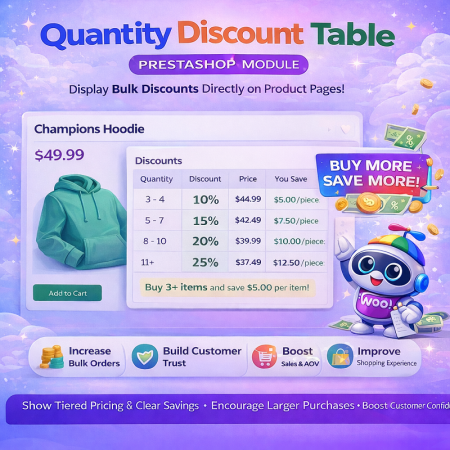
Make bulk pricing visible and encourage larger orders with the Quantity Discount Table Grid PrestaShop Module.
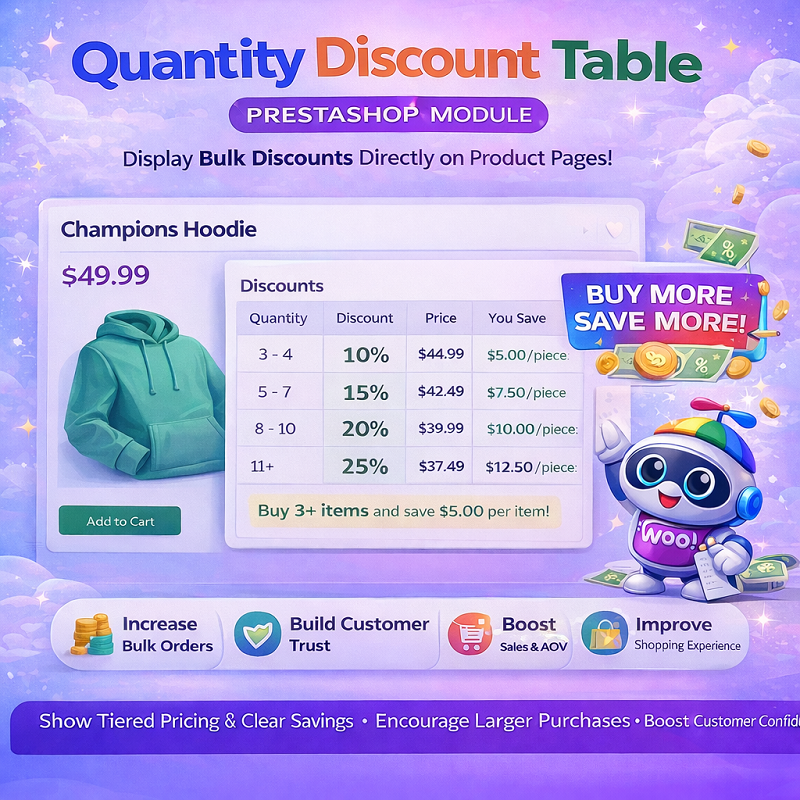
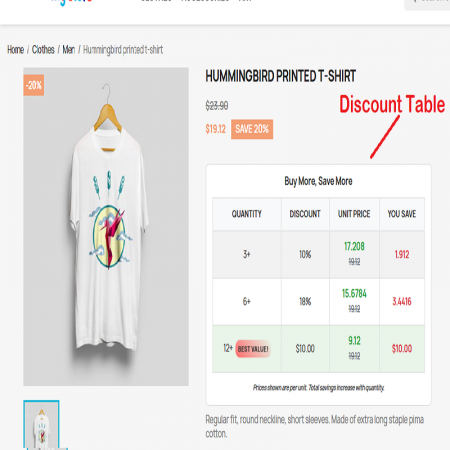
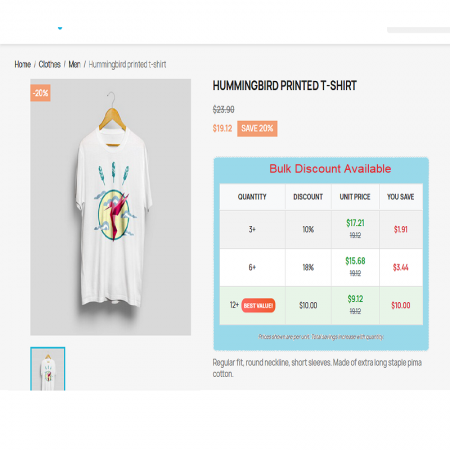
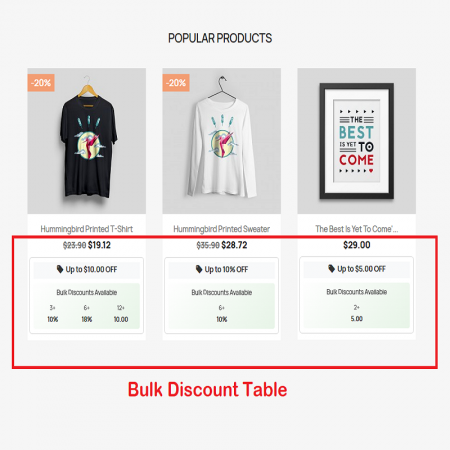
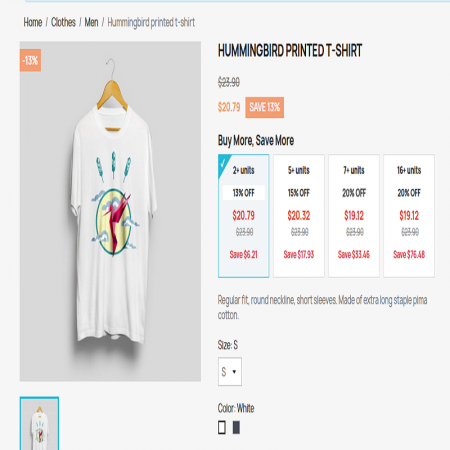
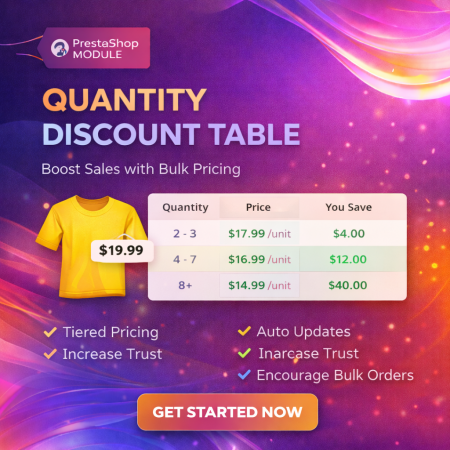
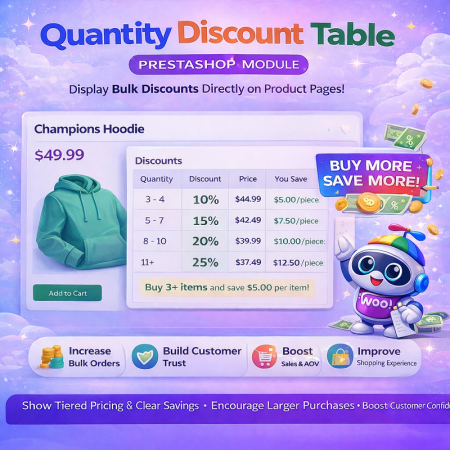
Display quantity-based discounts directly on your product pages using attractive, responsive tables or grid layouts. Let customers compare quantity ranges, unit prices, and available savings before adding products to their carts.
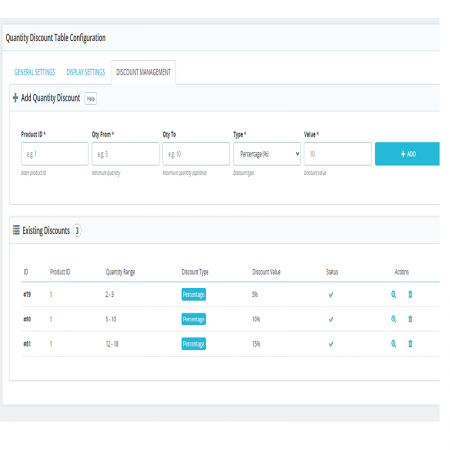
Integrate with PrestaShop Specific Prices and Catalog Price Rules to display applicable quantity-based offers. Customize the display position, choose fixed or percentage discounts, highlight the best discount tier, and allow customers to select quantities by clicking discount rows or cards.
With flexible layouts, custom CSS styling, multi-language and multi-store support, this module makes quantity discounts easier to understand and bulk purchasing more convenient.
Turn hidden price breaks into visible savings and give customers a clear reason to buy more.
Display Quantity Discounts. Highlight Bulk Savings. Encourage Customers to Buy More.
Customers often purchase more when they can clearly understand how much they will save by increasing their order quantity. However, when quantity-based discounts are not visible on product pages, shoppers may miss valuable offers or fail to recognize the benefits of buying in bulk.
The Quantity Discount Table & Grid PrestaShop Module solves this problem by displaying quantity-based pricing and discounts directly on product pages in an organized, easy-to-understand format.
Instead of making customers discover promotional prices during checkout, show them available quantity ranges, discounted unit prices, and potential savings while they are exploring a product.
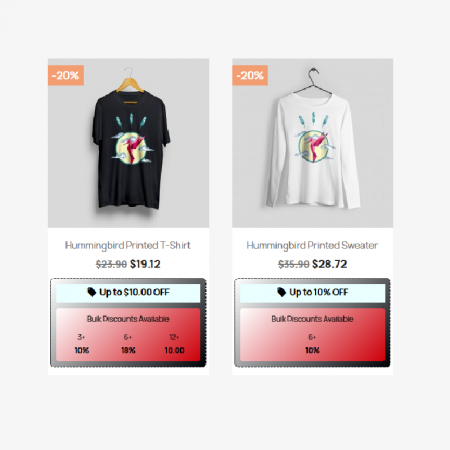
Choose between a responsive table and a modern card-based grid. Customize the display position, highlight the most attractive discount, and let customers select their desired quantity directly from a discount row or card.
The module integrates with PrestaShop Specific Prices and Catalog Price Rules to display applicable quantity-based pricing according to your store's configured pricing rules.
Whether you sell wholesale products, retail goods, accessories, electronics, packaging materials, or everyday consumables, this module helps you communicate bulk pricing more effectively.
Quantity-based pricing is an effective promotional strategy for encouraging customers to purchase multiple units of a product.
For example, instead of offering the same unit price for every purchase quantity, you can configure different price levels:
Purchase 1–4 units at the regular price.
Purchase 5–9 units and receive a 10% discount.
Purchase 10 or more units and receive a 20% discount.
However, offering quantity discounts is only part of the process. Customers also need to understand that these discounts are available.
The Quantity Discount Table & Grid module brings this information directly to the product page.
It automatically presents applicable quantity-based pricing in a structured table or grid so shoppers can compare available offers and identify the savings associated with larger orders.
Configure Pricing Rules → Display Quantity Tiers → Show Savings → Select Quantity → Add to Cart
This straightforward process connects your existing PrestaShop pricing rules with an easy-to-understand product-page presentation.
Show customers the available discounts before they add products to their carts. Clear pricing information helps shoppers understand the value of purchasing additional units.
Display attractive bulk pricing tiers to encourage customers to consider purchasing more units when the additional savings make sense.
Present different quantity ranges, unit prices, and savings in one place so customers can compare offers without repeatedly changing quantities.
Make your existing quantity-based promotions more noticeable by displaying them directly on product pages.
Allow customers to select a discount quantity directly from a table row or grid card instead of manually entering quantities.
Display quantity-based discounts in a structured table directly on your product pages.
A table format allows customers to compare multiple pricing tiers in clearly defined rows and columns.
Key capabilities:
Display available quantity discount ranges.
Show applicable prices for different quantities.
Present savings information alongside pricing.
Organize multiple discount tiers in a structured format.
Provide a responsive presentation for different screen sizes.
Make quantity-based offers easier to compare.
Business benefit: Customers can understand your bulk pricing strategy without navigating away from the product page.
Different storefronts have different design requirements. Choose a presentation style that fits your website's appearance.
Table Layout
Use a traditional pricing table to display quantity ranges, prices, and savings in rows and columns.
Ideal for:
Stores with several discount tiers.
Wholesale and bulk purchasing websites.
Customers who prefer direct price comparisons.
Product pages where compact information is important.
Grid Layout
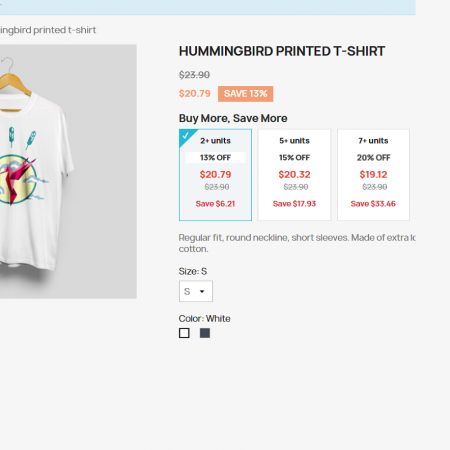
Present each quantity discount as an individual card.
Ideal for:
Modern eCommerce storefronts.
Visually highlighting different bulk offers.
Making individual discount tiers easier to identify.
Product pages where card-based layouts fit the design.
Both layouts help customers understand available quantity discounts without requiring them to visit the checkout page first.
Use your existing PrestaShop Specific Prices to manage applicable quantity-based pricing.
PrestaShop allows merchants to configure specific pricing conditions, including quantity thresholds and promotional reductions.
The module reads supported pricing information and presents applicable offers in an organized product-page display.
Key benefits:
Work with PrestaShop Specific Prices.
Display applicable quantity-based price reductions.
Communicate configured pricing tiers.
Present relevant promotional pricing directly on product pages.
Avoid maintaining a separate set of discount prices solely for the display.
Display applicable quantity-based discounts associated with supported PrestaShop Catalog Price Rules.
This helps merchants communicate existing catalog promotions without requiring customers to discover every discount through the cart or checkout process.
Key benefits:
Integrate with supported Catalog Price Rules.
Present applicable promotional discounts.
Make quantity-based offers more visible.
Connect your existing pricing strategy with product-page presentation.
The actual displayed offers depend on the applicable PrestaShop pricing conditions, rule priorities, and product eligibility.
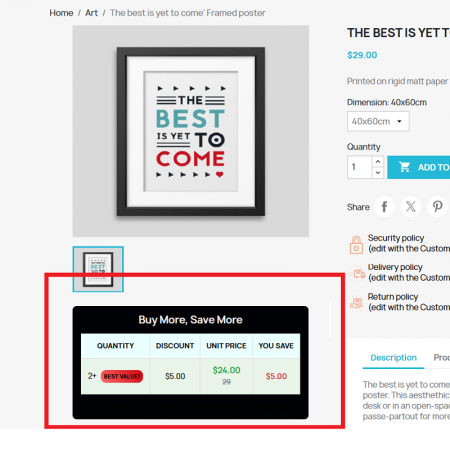
Control where the quantity discount table or grid appears on the product page.
Choose a placement that makes pricing information convenient for customers to discover.
Available display positions:
Below the product price.
In the Additional Info area.
After product thumbnails.
Business benefit: Position quantity discounts near important product information so customers can discover available savings while making purchasing decisions.
Present discounts using different reduction formats supported by your configured pricing rules.
Percentage Discounts
Show savings as a percentage of the regular price.
Example: Save 20%.
Fixed-Value Discounts
Display a monetary reduction in the applicable currency.
Example: Save €5.00.
This makes promotional offers easier to understand and allows customers to recognize the value of different quantity tiers.
Display multiple quantity-based price breaks according to your PrestaShop pricing configuration.
For example:
1–4 units.
5–9 units.
10 or more units.
Customers can immediately see how the price changes when they purchase additional units.
Key benefits:
Display different quantity thresholds.
Organize multiple discount levels.
Explain the relationship between quantity and price.
Help customers identify the next available discount level.
Business benefit: Make your tiered pricing strategy easier to understand and encourage customers to consider larger orders.
Draw attention to the most attractive available quantity discount.
Highlighting the best discount tier helps customers identify the highest available savings without manually comparing every offer.
Key benefits:
Make attractive discount levels more noticeable.
Direct customer attention toward bulk savings.
Improve the visibility of promotional offers.
Help customers compare different purchasing quantities.
Keep the discount display focused on meaningful bulk-purchase opportunities.
Some pricing configurations may include discounts that apply to a single unit. When these rules are not relevant to your bulk-purchase strategy, use the option to hide single-quantity rules.
Key benefits:
Reduce unnecessary pricing information.
Focus attention on multiple-unit discounts.
Keep the discount table or grid more relevant.
Improve the clarity of bulk pricing presentation.
Match the discount table or grid with your existing storefront design.
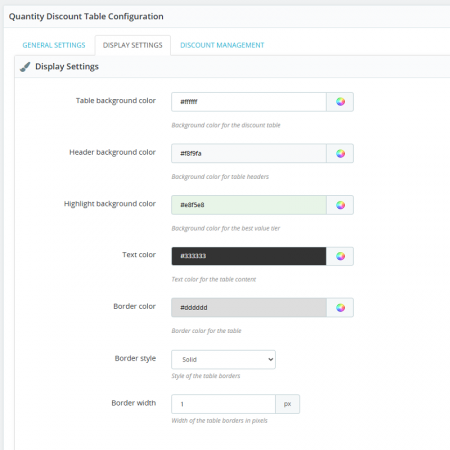
Use the built-in custom CSS editor to adjust the appearance of the quantity discount display.
Customization possibilities:
Adjust colors and backgrounds.
Customize borders and spacing.
Modify text appearance.
Style quantity discount rows.
Customize grid cards.
Improve the visual consistency of the discount display.
Business benefit: Present bulk pricing as a natural part of your product page instead of an unrelated promotional element.
Make bulk purchasing more convenient with interactive discount rows and grid cards.
Customers can click a quantity discount row or card to select its corresponding purchase quantity.
The product quantity field updates automatically, helping customers choose a bulk offer without manually entering the quantity.
Key capabilities:
Click a discount row to select its quantity.
Click a grid card to select its quantity.
Automatically update the product quantity field.
Simplify the process of selecting a bulk offer.
Connect the discount display with the normal product purchasing workflow.
Business benefit: Reduce unnecessary shopping steps and make it easier for customers to act on the discounts they see.
Make your discounts easier to understand by showing both percentage-based and monetary savings.
For example:
Save 20% – €5.00
This communicates the promotional value in two different ways, helping customers understand how much they save.
Key benefits:
Display percentage savings.
Display monetary savings.
Make discount benefits more transparent.
Help customers compare quantity offers.
Improve promotional pricing communication.
Support multilingual storefront environments by presenting the quantity discount information in the appropriate store language.
This is useful for merchants operating stores that serve customers across different language markets.
Business benefit: Maintain a more consistent pricing presentation for international shoppers.
Manage quantity discount presentation across supported PrestaShop multi-store environments.
This is useful for merchants operating multiple storefronts with different products, pricing strategies, or customer markets.
Business benefit: Extend your quantity discount display strategy across your multi-store business.
Consider a store selling a product at a regular unit price of $20.
The merchant configures different quantity-based discount levels.
| Purchase quantity | Price per unit | Savings |
|---|---|---|
| 1–4 units | $20.00 | Regular price |
| 5–9 units | $18.00 | Save 10% |
| 10+ units | $16.00 | Save 20% |
The module displays these offers directly on the product page.
Customers can compare the available tiers and select the quantity that best matches their requirements.
For example:
A customer purchasing 4 units pays the regular unit price.
A customer purchasing 5 units receives the applicable 10% discount.
A customer purchasing 10 units receives the applicable 20% discount.
Note: This is an illustrative pricing example. Actual prices, discount values, and quantity thresholds depend on your PrestaShop pricing rules and product configuration.
Offering bulk discounts is not enough if customers cannot easily understand them.
Many online stores face the following challenges when communicating quantity-based pricing.
Customers may not know that purchasing additional units can reduce the unit price.
Solution: Display applicable quantity discounts directly on product pages so customers can discover bulk offers while browsing.
When different quantity levels are not clearly presented, shoppers may struggle to understand how pricing changes.
Solution: Organize quantity ranges and prices in a structured table or grid.
Customers may not immediately recognize the value of ordering additional products.
Solution: Display savings in percentage and monetary formats to communicate promotional value clearly.
Customers may need to change quantities repeatedly and check prices to understand available discounts.
Solution: Present pricing tiers together and allow customers to select quantities directly from discount rows or cards.
Merchants may configure attractive quantity discounts without making them sufficiently visible to customers.
Solution: Highlight the best discount tier and position the display near important product information.
A fixed discount presentation may not match every storefront's appearance.
Solution: Choose between table and grid layouts, configure the display position, and customize the styling using CSS.
The Quantity Discount Table & Grid module connects promotional pricing with customer purchasing decisions.
Visible Discounts
Make existing quantity-based offers easier to discover.
Clear Price Comparisons
Show customers how unit prices change across different quantity ranges.
Transparent Savings
Display percentage and monetary reductions together.
Interactive Quantity Selection
Let customers select the quantity associated with a discount directly from the product page.
Promotional Highlighting
Draw attention to attractive bulk-purchase offers.
Flexible Presentation
Choose the display style and position that best suits your storefront.
Together, these features can help improve promotional visibility, reduce purchasing uncertainty, and encourage customers to consider higher quantities.
Quantity-based pricing is useful for businesses that sell products in multiple quantities or want to encourage bulk orders.
Display tiered prices for business customers who regularly purchase products in larger quantities.
Encourage customers to purchase multiple accessories, cables, adapters, and other compatible products through visible quantity discounts.
Show bulk pricing for cartons, packaging materials, components, tools, and supplies.
Communicate quantity discounts for clothing, uniforms, accessories, and other products purchased in multiple units.
Encourage customers and resellers to purchase multiple beauty, skincare, and cosmetic products.
Display quantity-based savings for everyday consumables and household products.
Highlight bulk pricing for promotional merchandise, corporate gifts, event supplies, and customizable products.
Use quantity discount tables or grids across different product categories to make bulk offers more visible.
The module follows a straightforward workflow.
Configure quantity-based discounts using the supported PrestaShop Specific Prices or Catalog Price Rules.
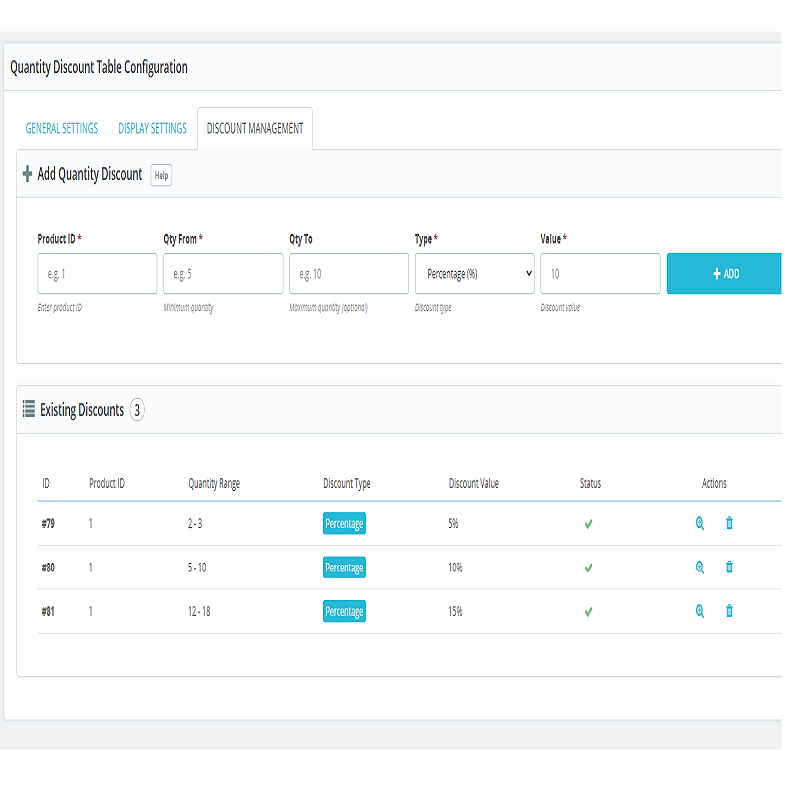
Define the quantity thresholds and applicable reductions according to your promotional strategy.
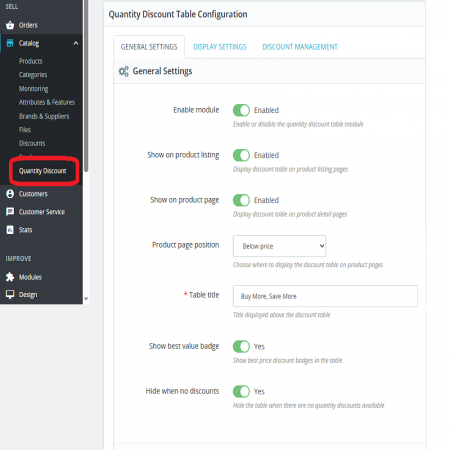
Open the module configuration and choose your preferred presentation style.
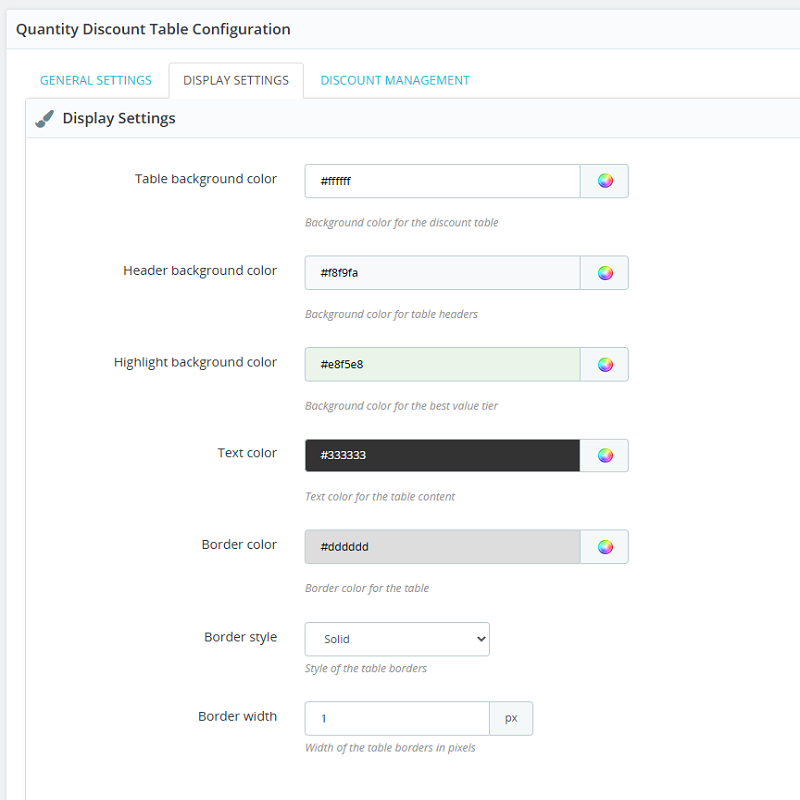
Select table or grid layout, configure the display position, and adjust other available display options.
The module presents applicable quantity-based pricing on the relevant product pages.
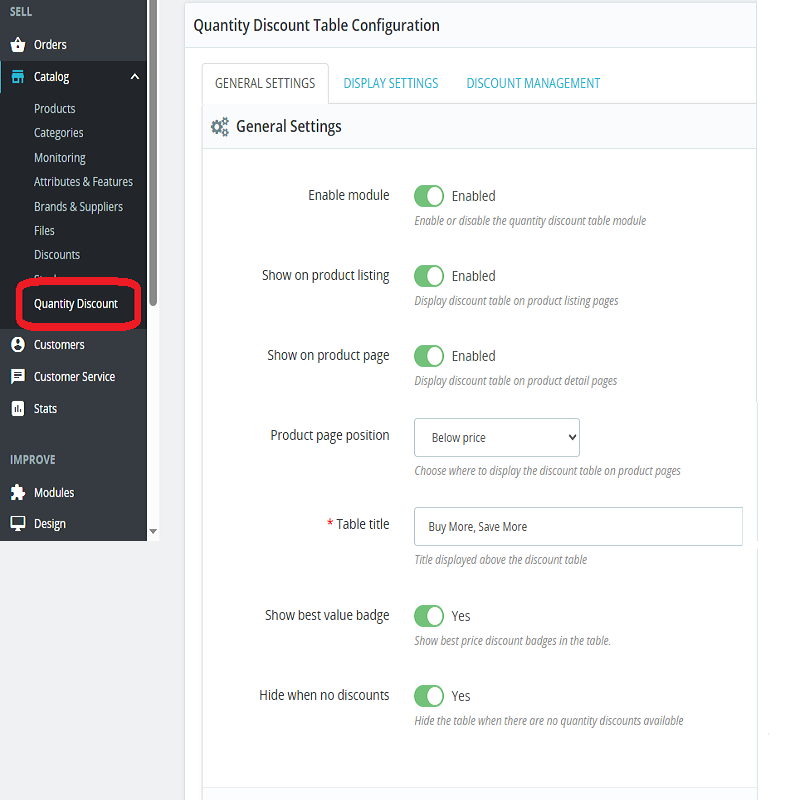
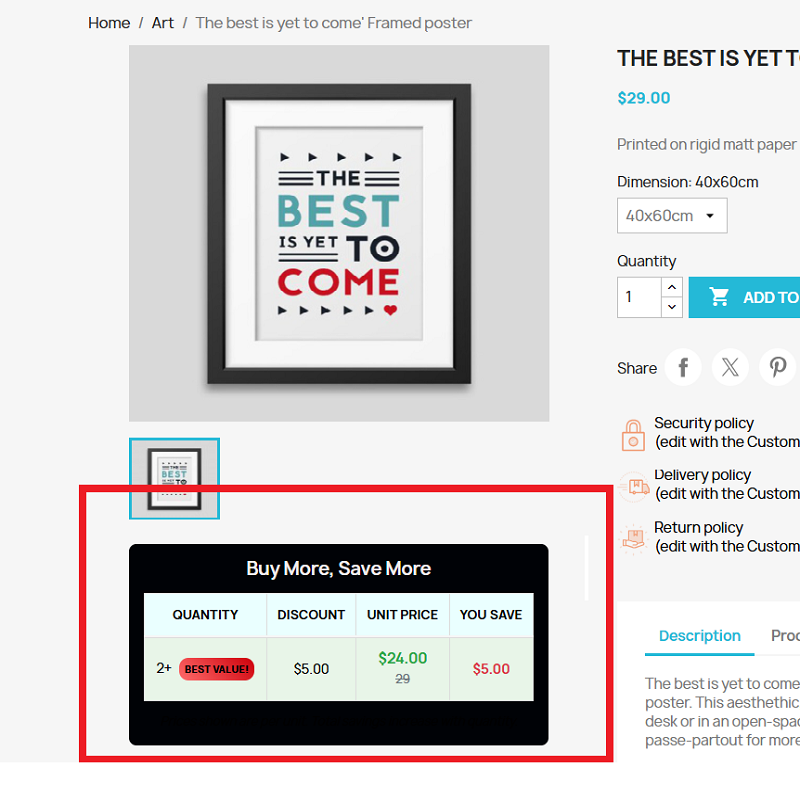
Customers can view quantity ranges, prices, and savings before making a purchase.
Customers click the relevant discount row or grid card.
 |
 |
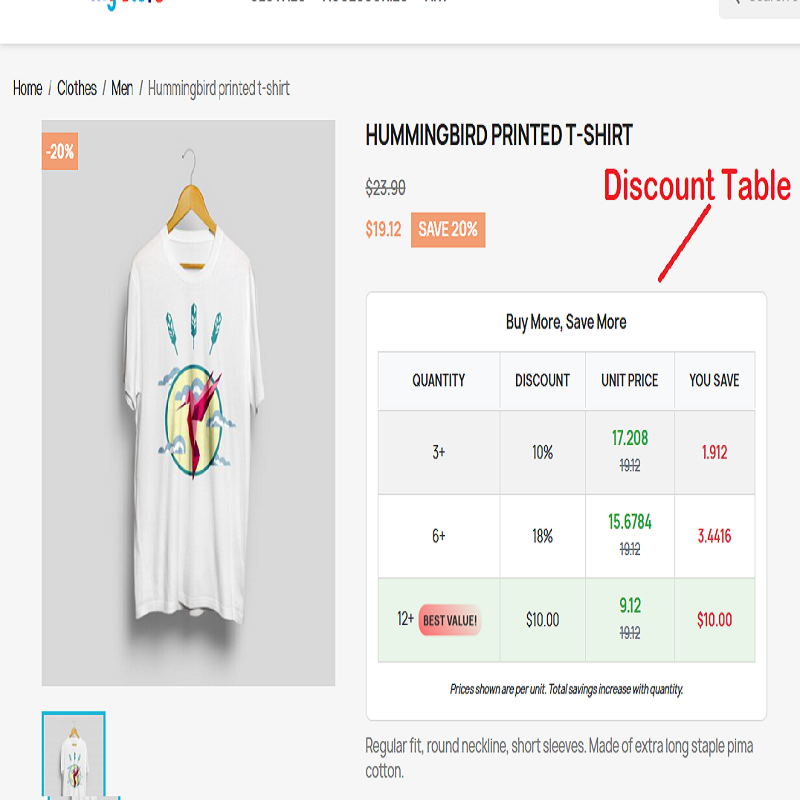 |
The corresponding quantity is automatically selected in the product quantity field.
Customers proceed with the normal PrestaShop purchasing process using their selected quantity and applicable pricing conditions.
Install the Quantity Discount Table & Grid module using either the PrestaShop Back Office module uploader or FTP.
Download the module ZIP package to your computer.
Log in to your PrestaShop Back Office.
Navigate to Modules → Module Manager.
Click Upload a module.
Select the downloaded module ZIP file.
Wait for the upload to complete.
Click Install.
Open the module configuration area.
Configure your quantity discount display preferences.
Visit a product page with applicable quantity pricing to verify the display.
Download the module ZIP package.
Extract the archive on your computer.
Locate the stquantitydiscountpro module folder.
Connect to your hosting server using FTP or File Manager.
Upload the complete module folder to your PrestaShop /modules/ directory.
Log in to your PrestaShop Back Office.
Navigate to Modules → Module Manager.
Locate the Quantity Discount Table & Grid module.
Click Install.
Open the configuration page and configure the display settings.
Test the discount table or grid on an eligible product page.
It is a PrestaShop module that displays quantity-based discounts directly on product pages using responsive tables or grid layouts. Customers can compare pricing tiers, understand savings, and select quantities associated with available offers.
The module displays applicable quantity ranges, prices, and savings based on supported PrestaShop pricing rules. Customers can see how the unit price changes when they purchase additional units.
Yes. The module integrates with PrestaShop Specific Prices to display applicable quantity-based pricing and discounts.
Yes. The module supports applicable quantity-based discounts from PrestaShop Catalog Price Rules.
Yes. You can choose between a traditional table layout and a card-based grid layout.
Yes. The click-to-select functionality allows customers to click a discount row or grid card, automatically updating the product quantity field.
Yes. Available positions include below the product price, in the Additional Info area, and after product thumbnails.
Yes. The module includes a custom CSS editor so you can adjust the appearance of the table or grid to match your storefront design.
Yes. It supports displaying savings in percentage and monetary formats according to the applicable pricing configuration.
Yes. The module provides an option to hide single-quantity discount rules so the display can focus on bulk-purchase opportunities.
Yes. The module can highlight the most attractive discount tier to make the available bulk savings more noticeable.
Yes. It supports multilingual PrestaShop environments.
Yes. The module supports PrestaShop multi-store environments.
No separate pricing system is required for the display. Configure supported quantity-based pricing using PrestaShop Specific Prices or Catalog Price Rules, and the module presents the applicable offers.
The module displays the applicable pricing information and allows customers to select the corresponding quantity. Actual product pricing and discount application are handled through the supported PrestaShop pricing rules and normal cart calculation process.
Quantity discounts should be easy to discover, compare, and use.
With the Quantity Discount Table & Grid PrestaShop Module, you can turn your existing quantity-based pricing rules into clear product-page offers.
Display tiered prices, highlight bulk savings, customize the presentation, and let customers select quantities directly from discount rows or cards.
Give customers a clearer understanding of your bulk pricing strategy and create a more convenient purchasing experience.
Make your quantity discounts visible. Make your savings understandable. Encourage smarter bulk purchases with Sathi.
| Vendor | Sathi |
|---|---|
| Last update | Nov 24, 2026 |
| Version | 1.0.2 |
| Required store version | From 1.7.x to 9.2.x |
| Publication date | Aug 19, 2025 |
| Return Policy | You can return the product within the 30 days return period for a full refund. No questions asked. |
| Customer Support | Enjoy one year of free customer support, including installation, troubleshooting, and usage guidance. |
| Description | This product is compatible with the specified versions and includes all the latest updates to enhance functionality and user experience. |
Version:1.0.1

 Display Product Slider & Grid – Product Showcase Module for PrestaShop

 Daily Deals Widget – Multiple Promotional Campaigns with Countdown Timer for PrestaShop
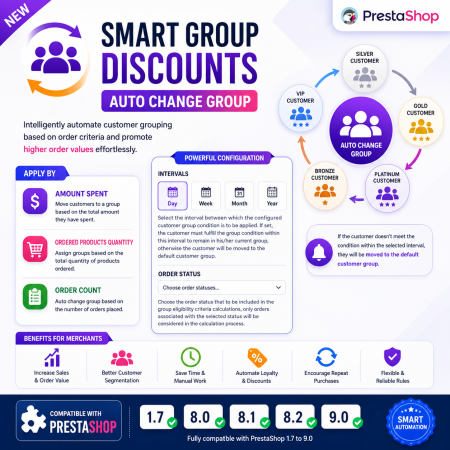
 Smart Group Discounts & Automatic Customer Group Changes for PrestaShop
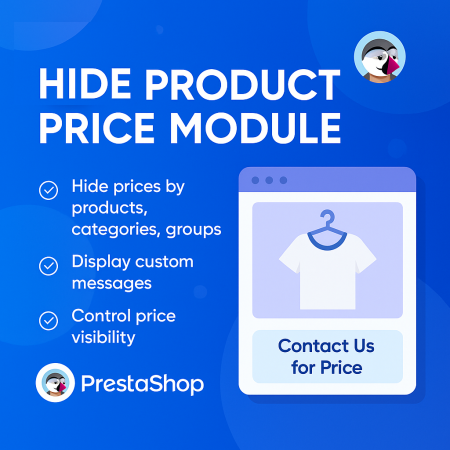
 Hide Product Price – Control Product Price Visibility in PrestaShop
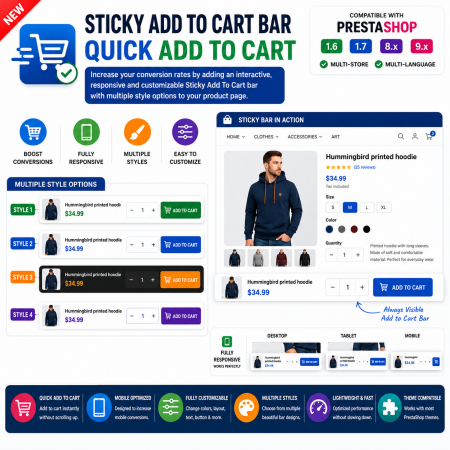
 Sticky Add to Cart Bar – Quick Add to Cart Module for PrestaShop
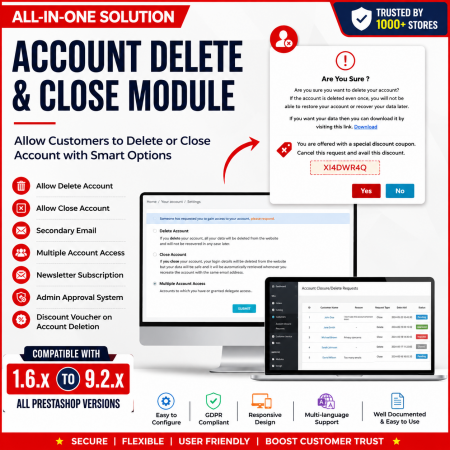
 Customer Account Settings – Customer Account Management Module for PrestaShop
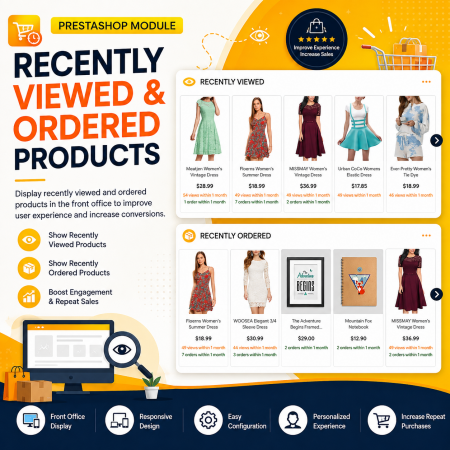
 Recently Viewed and Ordered Products – Product History Module for PrestaShop
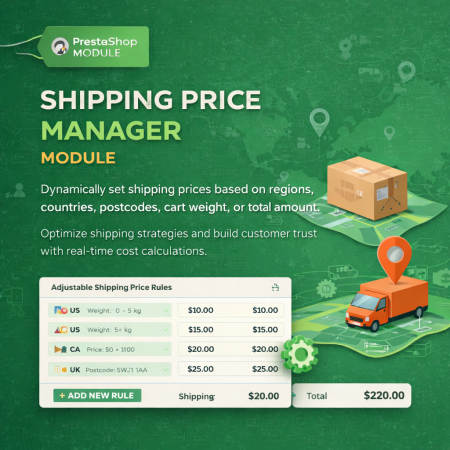
 Shipping Price Manager – Dynamic Shipping Cost Management Module for PrestaShop
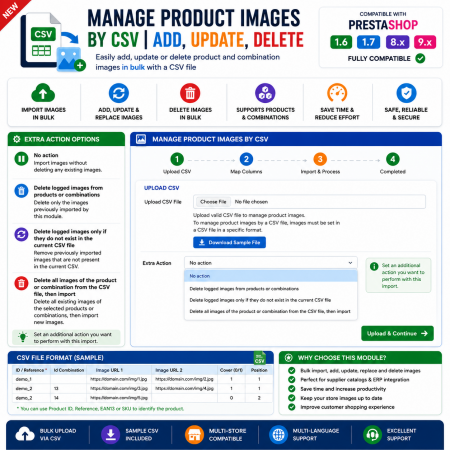
 Manage PrestaShop Product Images by CSV – Add, Update & Delete
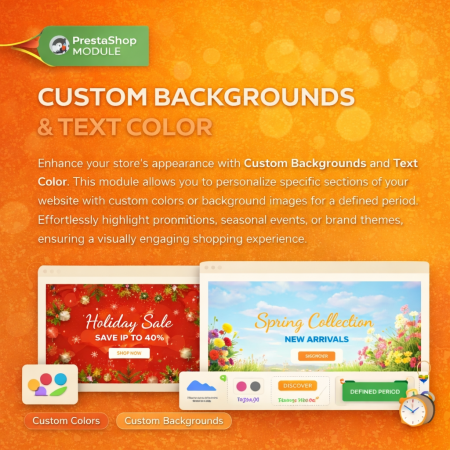
 Custom Background & Text Color – PrestaShop Website Design Customization Module
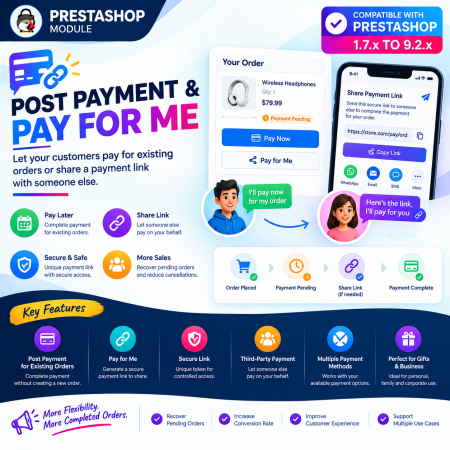
 Post Payment & Pay for Me Module for PrestaShop
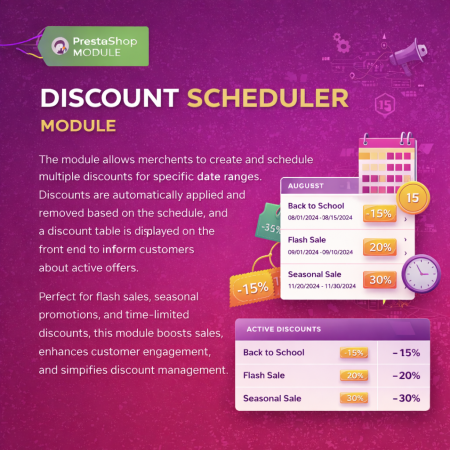
 Multiple discount date wise discount Prestashop Module
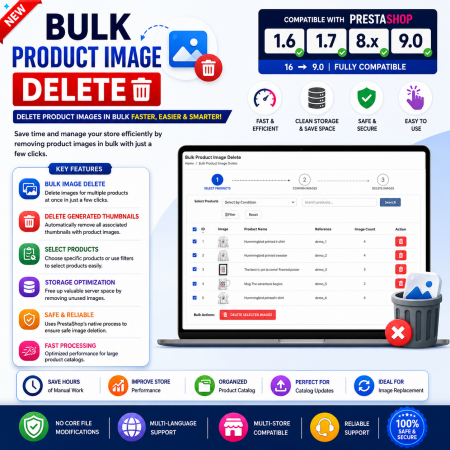
 Bulk Product Image Delete – Remove Product Images in Bulk in PrestaShop
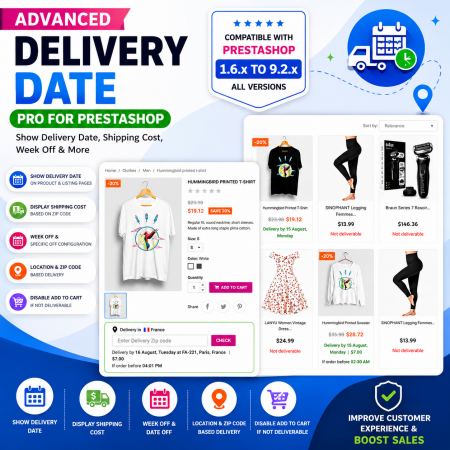
 Proposed Delivery Date and Cost Module for PrestaShop
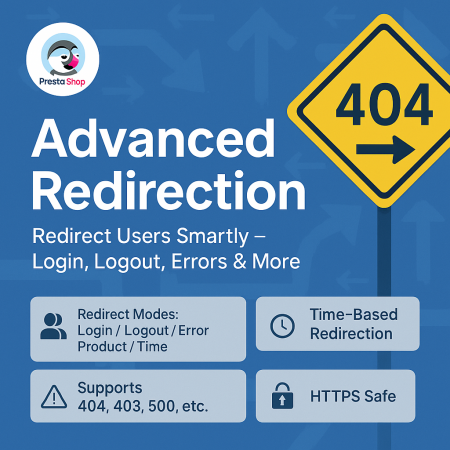
 Advanced URL Redirection Module for PrestaShop – 301, 302, 404 & Scheduled Redirects
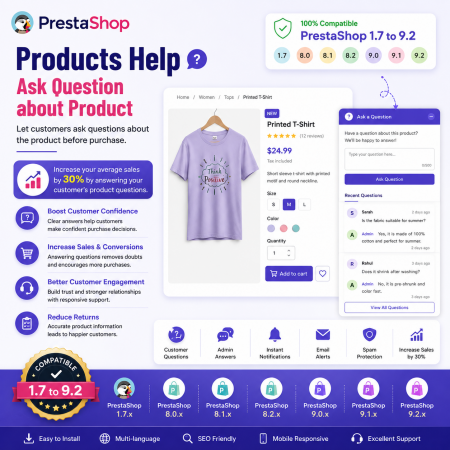
 Products Help – Ask Questions About Products in PrestaShop
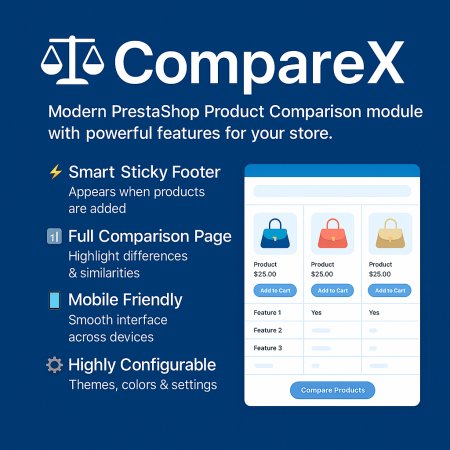
 Advance Product Comparison – Compare Products Side by Side in PrestaShop
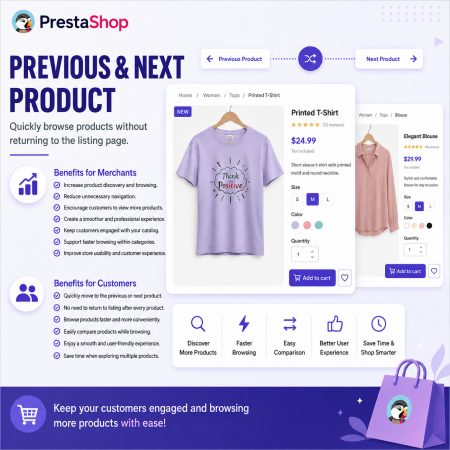
 Advanced Product Navigation – Previous & Next Product Links for PrestaShop

 Advanced Shop & Product Reviews and Ratings Module for PrestaShop
Make bulk pricing visible and encourage larger orders with the Quantity Discount Table Grid PrestaShop Module.
Display quantity-based discounts directly on your product pages using attractive, responsive tables or grid layouts. Let customers compare quantity ranges, unit prices, and available savings before adding products to their carts.
Integrate with PrestaShop Specific Prices and Catalog Price Rules to display applicable quantity-based offers. Customize the display position, choose fixed or percentage discounts, highlight the best discount tier, and allow customers to select quantities by clicking discount rows or cards.
With flexible layouts, custom CSS styling, multi-language and multi-store support, this module makes quantity discounts easier to understand and bulk purchasing more convenient.
Turn hidden price breaks into visible savings and give customers a clear reason to buy more.

Encrypted payment gateways ensuring your financial and personal data remain 100% protected.

Every module includes professional installation assistance, free updates, and reliable troubleshooting.

Rigorously tested PrestaShop & WooCommerce extensions designed for maximum speed and zero bloat.

Transparent policies, clean documentation, and dedicated assistance if you run into any compatibility hurdles.