
- -$40.00

This module enhances the shopping experience by allowing customers to easily explore product variations such as...

The module allows merchants to enhance product images with customizable stickers and labels. Whether it’s...

The Quantity Discount Table & Grid Module for PrestaShop helps merchants display...

This module allows you to offer free shipping based on flexible conditions, such as location, carrier, cart value,...

The module automatically adjusts language, currency, and country settings based on the customer's location....


Vendor
Version
Last update
Prestashop version
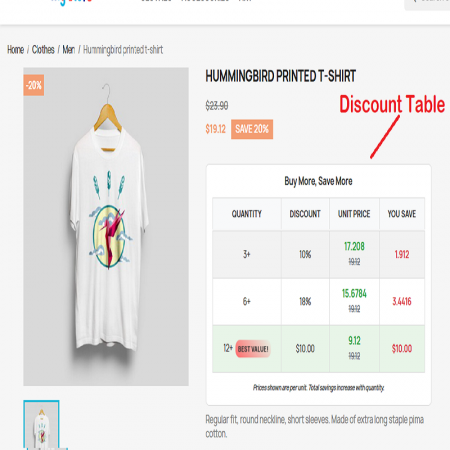
The Quantity Discount Table & Grid Module for PrestaShop helps merchants display quantity-based pricing and bulk discounts directly on product pages.
Customers can easily compare different quantity ranges, view discounted prices, and understand their savings before adding products to the cart. The module supports table and grid layouts, fixed and percentage discounts, flexible display positions, and click-to-select quantity functionality.
It works with PrestaShop Specific Prices and Catalog Price Rules, helping merchants present existing promotional pricing in a more attractive and understandable way.
With responsive design, custom CSS styling, multilingual support, and multi-store compatibility, it provides a flexible solution for stores that want to promote bulk purchases and improve pricing transparency.
Show customers exactly how much they can save when they buy more. Display attractive quantity-based pricing tables and discount grids directly on your product pages.
The Quantity Discount Table & Grid Module for PrestaShop makes bulk pricing easy to understand by displaying quantity-based discounts directly on product pages. It presents tiered prices and savings in a structured, responsive table or grid so customers can quickly compare available quantity levels.
Instead of hiding quantity discounts until checkout, the module displays savings upfront. Customers can see the benefits of ordering additional units, understand the applicable price breaks, and make more confident purchasing decisions.
With flexible display positions, customizable styling, quantity selection from discount rows or cards, and support for PrestaShop Specific Prices and Catalog Price Rules, the module helps merchants communicate promotional pricing more effectively.
Show customers the savings available at different purchase quantities.
Make bulk pricing more attractive and encourage customers to consider higher quantities.
Present quantity breaks and savings in a clear, easy-to-compare format.
Choose table or grid presentation and customize its appearance.
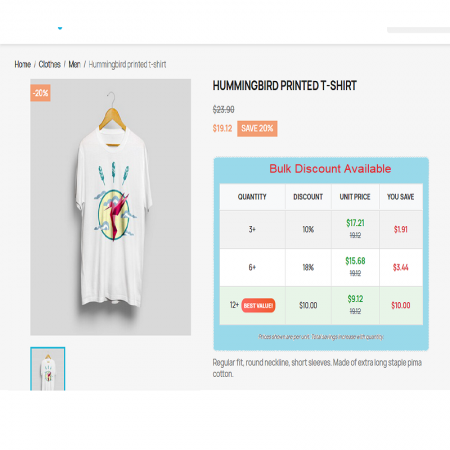
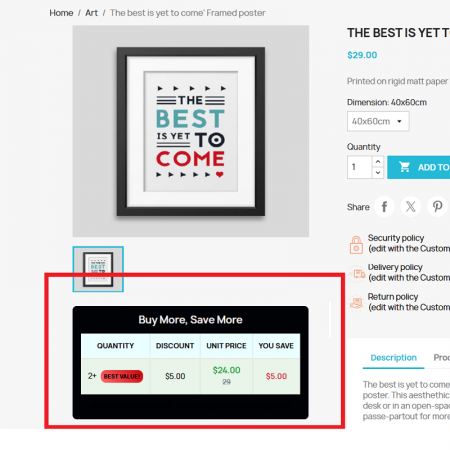
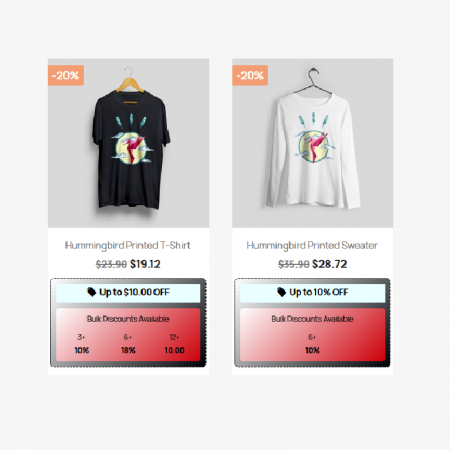
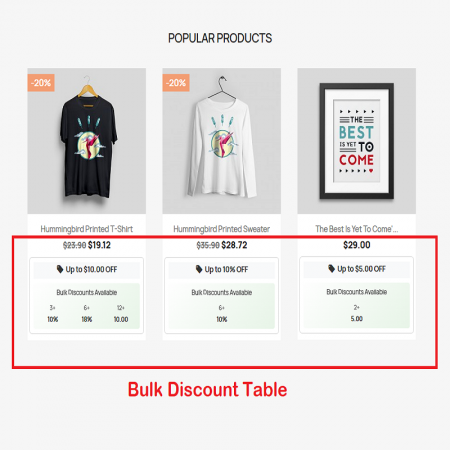
Display quantity-based discounts in a structured table directly on product pages. Customers can compare pricing tiers and understand the savings available for larger orders.
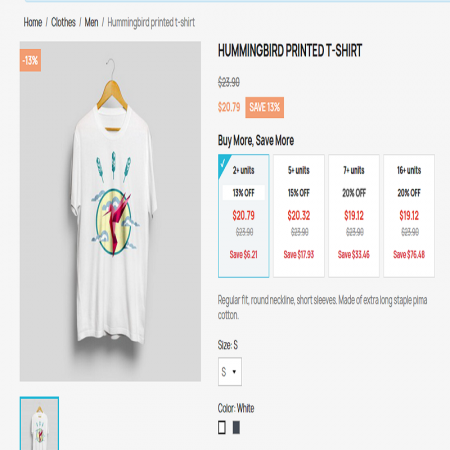
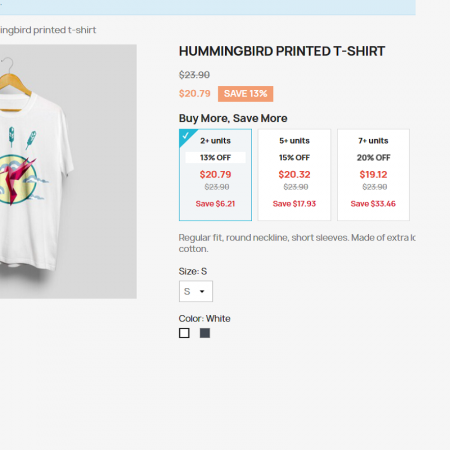
Choose between a traditional table layout and a card-based grid layout to present quantity discounts in a style that suits your store design.
Works with PrestaShop Specific Prices and Catalog Price Rules to display applicable quantity-based pricing and promotional discounts.
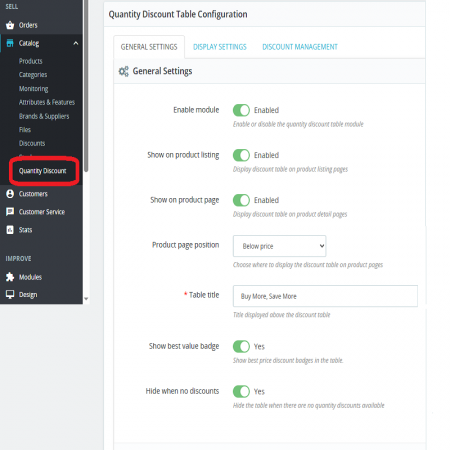
Choose where the discount table appears on the product page, including below the product price, in the Additional Info area, or after product thumbnails.
Display quantity discounts using fixed-value or percentage-based reductions, according to the pricing rules configured in your store.
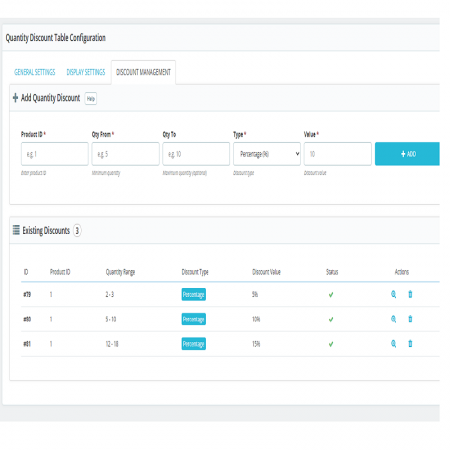
Present quantity breaks such as 5–9 units and 10 or more units, helping customers understand how pricing changes as order quantities increase.
Highlight the most attractive discount tier to draw attention to the best available bulk-saving opportunity.
Optionally hide quantity rules that apply to just one unit, keeping the discount presentation focused on meaningful bulk-purchase opportunities.
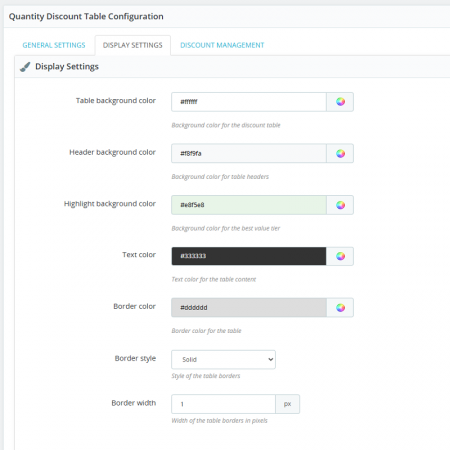
Use the built-in CSS editor to customize the appearance of the discount table or grid and align it with your storefront design.
Allow customers to click a discount row or grid card to select its quantity. The cart quantity updates automatically, making it easier to choose a bulk offer.
Show savings as both a percentage and a monetary value, for example, “Save 20% – €5.00”, so customers can understand the benefit at a glance.
Support multilingual and multi-store PrestaShop environments, helping merchants provide consistent quantity-discount information across their storefronts.
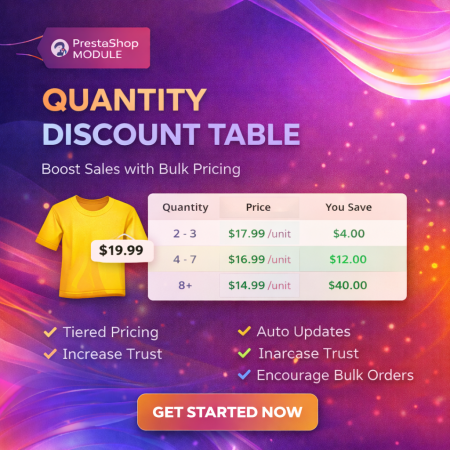
Illustrative example only. Actual prices and discounts depend on your PrestaShop pricing rules.
| Quantity | Price per Unit | Savings |
|---|---|---|
| 1–4 units | $20.00 | Regular price |
| 5–9 units | $18.00 | Save 10% |
| 10+ units | $16.00 | Save 20% |
This example demonstrates how quantity breaks can be presented. Configure your own applicable prices and discount rules in PrestaShop.
When quantity-based discounts are not clearly presented, customers may not understand the benefits of purchasing more units. This can make bulk offers less effective and create unnecessary uncertainty during shopping.
The Quantity Discount Table & Grid module turns quantity-based pricing into clear, visible information directly on the product page.
Configure quantity-based discounts using the supported PrestaShop pricing rules.
Select a table or grid layout and configure its display position.
Customers can view quantity ranges, prices, and savings on product pages.
Customers can select a quantity from a discount row or card and continue shopping.
Install the Quantity Discount Table & Grid module using the PrestaShop module uploader or by uploading its folder manually to your server.
After installation, open Catalog → Quantity Discounts in the PrestaShop Back Office to configure the rules and display settings.
Create or verify your quantity-based Specific Prices or Catalog Price Rules before testing the discount display. Back up your store files and database before installation or updates.
Show your customers the value of buying more with clear quantity tiers, attractive discount displays, and easy quantity selection.
| Vendor | Sathi |
|---|---|
| Last update | Nov 04, 2026 |
| Version | 1.0.2 |
| Required store version | From 1.7.x to 9.2.x |
| Publication date | Aug 19, 2025 |
| Return Policy | You can return the product within the 30 days return period for a full refund. No questions asked. |
| Customer Support | Enjoy one year of free customer support, including installation, troubleshooting, and usage guidance. |
| Description | This product is compatible with the specified versions and includes all the latest updates to enhance functionality and user experience. |
Version:1.0.1
 Free Shipping By zone, Carrier Prestashop Module

 Auto Pagination | Infinite Scroll Prestashop Module

 Product Attribute Images Prestashop Module
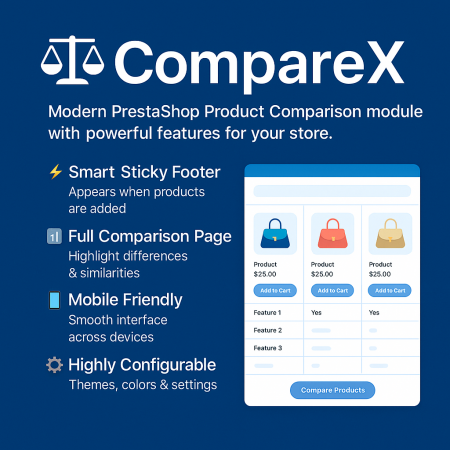
 Advanced Product Comparison Module for PrestaShop | Compare Products

 Smart Similar Products | Attribute & Price Matching Module for PrestaShop
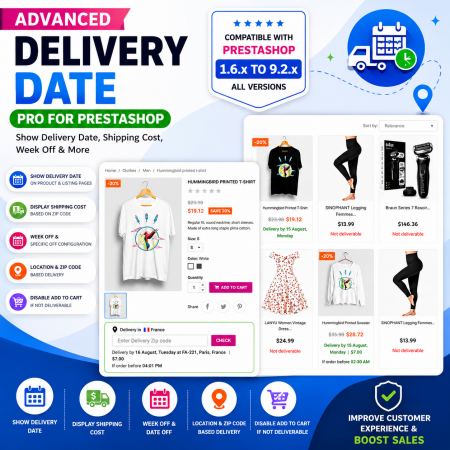
 Proposed Delivery Date and Cost Module for PrestaShop
 Show Product Attributes Or Combinations Prestashop Module

 Save & Share Cart PrestaShop Module

 Enable or Disable Carriers with Conditions PrestaShop Module

 Advanced Product Navigation – Previous & Next for PrestaShop
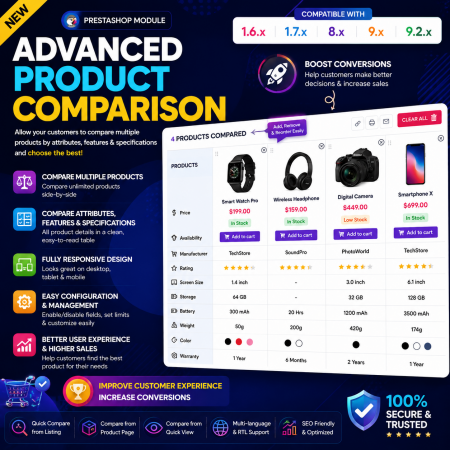
 Advance Product Comparison – Compare Products in PrestaShop

 Mega Attribute Popup Module for PrestaShop
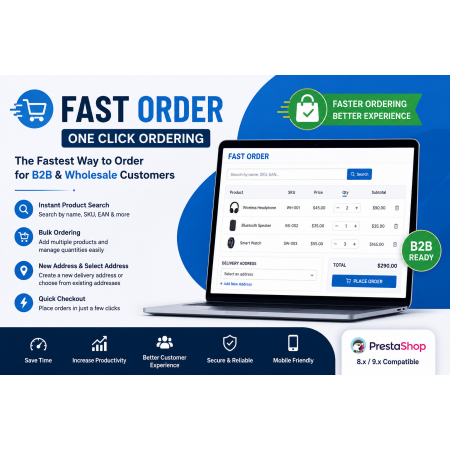
 Fast Order with Instant and File Search for PrestaShop Module

 PrestaShop Product Video Module – YouTube, Vimeo & Video Upload
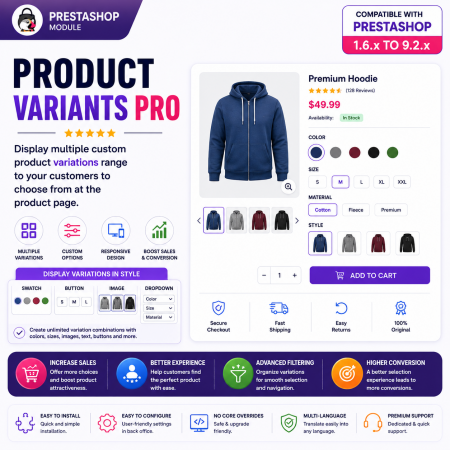
 PrestaShop Product Variants Pro – Custom Product Variant Groups Module

 Advanced Multiple Carts – Dropdown & Slider Cart for PrestaShop
The Quantity Discount Table & Grid Module for PrestaShop helps merchants display quantity-based pricing and bulk discounts directly on product pages.
Customers can easily compare different quantity ranges, view discounted prices, and understand their savings before adding products to the cart. The module supports table and grid layouts, fixed and percentage discounts, flexible display positions, and click-to-select quantity functionality.
It works with PrestaShop Specific Prices and Catalog Price Rules, helping merchants present existing promotional pricing in a more attractive and understandable way.
With responsive design, custom CSS styling, multilingual support, and multi-store compatibility, it provides a flexible solution for stores that want to promote bulk purchases and improve pricing transparency.

Encrypted payment gateways ensuring your financial and personal data remain 100% protected.

Every module includes professional installation assistance, free updates, and reliable troubleshooting.

Rigorously tested PrestaShop & WooCommerce extensions designed for maximum speed and zero bloat.

Transparent policies, clean documentation, and dedicated assistance if you run into any compatibility hurdles.